


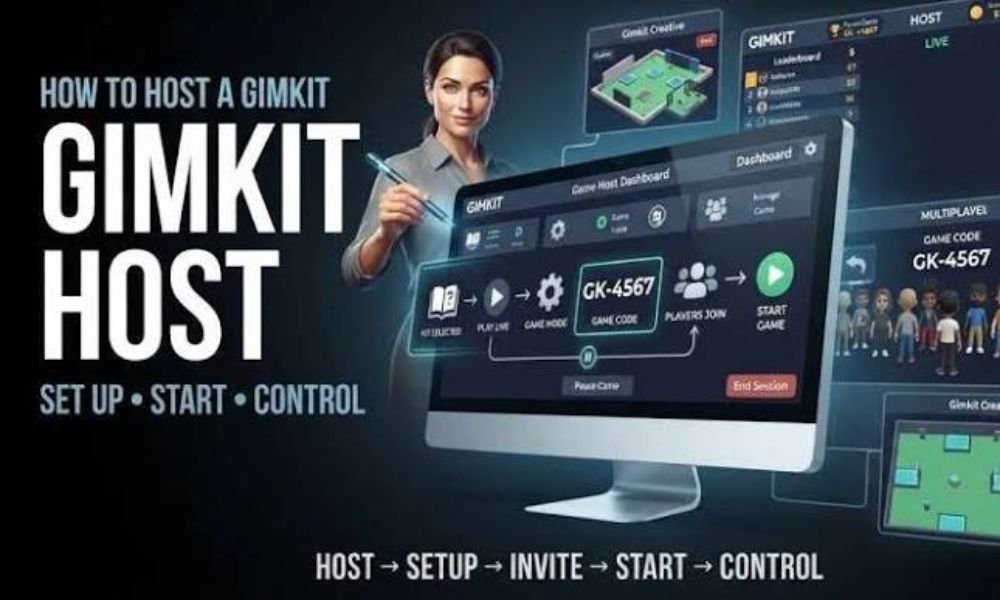
Gimkit Host is a feature that allows teachers to create, organize, and manage live educational games using the popular Gimkit learning platform. It helps turn ordinary classroom quizzes into exciting activities where students answer questions, earn rewards, and compete or work together.
Learning does not always have to involve reading textbooks or completing worksheets. Interactive games can make lessons more enjoyable and encourage students to participate.
Gimkit is designed to combine education with gaming. Teachers can create question sets, choose different game modes, and invite students to join using a simple game code.
Students can participate from computers, tablets, and other supported devices.
The host controls the game, selects the rules, manages participants, and monitors the activity.
Whether you are a teacher, student, or beginner exploring online learning tools, this guide explains everything you need to know about Gimkit Host in 2026.
What Is Gimkit Host?
Gimkit Host is the hosting feature of Gimkit, an online educational gaming platform.
It allows teachers and organizers to start live games using question sets called Kits.
A Kit contains questions and answers related to a particular topic.
For example, a teacher may create a mathematics Kit containing multiplication questions.
Students answer these questions while participating in different games.
Depending on the selected game mode, correct answers may help players earn virtual money, gain energy, collect resources, or complete challenges.
The host controls the session from a separate screen.
Gimkit Host Quick Facts
| Feature | Details |
|---|---|
| Platform | Gimkit |
| Feature | Gimkit Host |
| Official Website | gimkit.com |
| Main Purpose | Hosting educational games |
| Primary Users | Teachers and educators |
| Student Access | Game code, link, or QR code |
| Question Collections | Kits |
| Game Types | Individual and team games |
| Free Version | Available with limitations |
| Premium Version | Gimkit Pro |
| Devices | Computers, tablets, compatible browsers |
| Internet Required | Yes |
| Player Management | Available |
| Game Reports | Available for eligible sessions |
| Main Benefit | Interactive classroom learning |
How Does Gimkit Host Work?
Gimkit Host works by connecting a teacher’s game session with students who want to participate.
The teacher first selects a Kit containing questions.
Next, the teacher chooses a game mode.
Each game mode has different rules and objectives.
Some modes involve collecting resources, while others focus on teamwork, competition, or exploration.
After selecting a mode, the host creates a game lobby.
The lobby displays a unique code that students can use to join.
Once everyone has entered, the teacher starts the game.
Students answer questions and participate in the selected activity.
The host can monitor the game and end the session when needed.
How to Host a Gimkit Game: Step-by-Step Guide
Hosting a Gimkit game is straightforward, even for beginners.
Follow these steps to get started.
Step 1: Open the Gimkit Website
Visit the official Gimkit website.
Sign in using your teacher account.
If you are new to the platform, create an account by following the registration instructions.
Step 2: Choose a Kit
After signing in, open your dashboard.
Select an existing Kit or create a new one.
A Kit is simply a collection of educational questions.
For example, you might create a Kit about world geography, English vocabulary, or basic science.
Step 3: Select Play Live
Find the Kit you want to use.
Click the Play Live button.
This opens the available game modes.
Step 4: Choose a Game Mode
Select a game mode that matches your classroom activity.
Some modes are competitive, while others encourage teamwork.
Choose one and continue.
Step 5: Adjust the Game Settings
Gimkit allows hosts to customize supported settings.
Depending on the selected mode, these may include game duration, objectives, nickname options, and late joining.
Choose settings suitable for your students.
Step 6: Share the Game Code
After setting up the session, Gimkit displays a game code.
Share this code with your students.
You may also provide a direct link or display a QR code.
Step 7: Start the Game
Wait until students join the lobby.
Check the participant list.
When everyone is ready, click Start Game.
The game will begin.
How to Join a Gimkit Host Game
Students can join a Gimkit game without going through the hosting process.
They simply need the code or link provided by their teacher.
Join Using a Game Code
Open the official Gimkit Join page.
Enter the code shown by the host.
Follow the instructions to enter a nickname or identify yourself.
Once accepted, you will enter the game lobby.
Join Using a QR Code
Some teachers display a QR code.
Students can scan the code using a compatible device.
This opens the joining process without manually typing the game code.
Join Using a Direct Link
The teacher may share a direct game link.
Students can open the link to access the session.
Do Students Need a Gimkit Account?
Students can generally join live games without creating individual accounts.
However, sessions connected with Gimkit Classes may have different requirements.
Popular Gimkit Game Modes
One reason teachers enjoy Gimkit is its variety of game modes.
Different games create different learning experiences.
1. Don’t Look Down
Don’t Look Down is a platform-style adventure game.
Players answer questions to earn energy.
They use this energy to move and jump through challenging levels.
The goal is to reach the top.
This mode combines educational questions with movement and timing.
2. One Way Out
One Way Out is a cooperative adventure game.
Players work together to escape a spaceship.
They answer questions to earn energy and explore the environment.
Teamwork is important because students must cooperate to complete the objective.
3. Snowbrawl
Snowbrawl is a competitive game where players answer questions to earn snowballs.
They use the snowballs to compete against other participants.
The mode encourages quick thinking and active participation.
4. Blastball
Blastball is a soccer-style game.
Players answer questions to earn blasts that help move the ball.
Teams compete to score goals.
The mode combines teamwork with educational challenges.
5. Snowy Survival
Snowy Survival is a survival-themed game.
Players answer questions to earn resources and try to remain in the game.
The activity includes challenges and changing conditions.
Which Gimkit Mode Is Best?
The best mode depends on your classroom goals.
For teamwork, cooperative games may be suitable.
For competition, teachers may prefer modes involving individual scores or opposing teams.
For a quick lesson review, choose a mode that is easy to explain and fits the available time.
Game availability can change, so teachers should check the current selection in their Gimkit dashboard.
Gimkit Host Settings Explained
Game settings help teachers control the classroom experience.
The available options depend on the selected mode.
Game Duration
Some modes allow teachers to set a time limit.
Short games may be useful for quick revision sessions.
Longer games can support more detailed activities.
Nickname Generator
The nickname generator assigns names to players automatically.
This can help prevent inappropriate usernames.
It may also make classroom management easier.
Join in Late
This setting determines whether students can enter after the game begins.
Teachers may enable it when students arrive at different times.
Game Objectives
Some modes allow teachers to choose different winning conditions or goals.
These settings determine how the game ends.
Class Connections
Gimkit supports Classes, which help teachers organize students.
Connecting a class may simplify the joining process.
How to Manage Students During a Gimkit Game
Hosting a game involves more than starting it.
Teachers may need to manage participants and monitor activity.
View the Player List
The host can see participating students.
This helps identify who has joined.
Remove Players
If a student enters an inappropriate name or disrupts the activity, the host can remove that participant.
Monitor Progress
The host screen provides information about the game.
Depending on the mode, teachers may view rankings, progress, or other gameplay information.
Display the Leaderboard
Leaderboards show how players are performing.
They can encourage friendly competition.
However, teachers should make sure students understand that learning matters more than winning.
End the Game
The host can end a session when necessary.
This is useful when class time runs out or the activity is complete.
How to Create a Gimkit Kit
A Kit is the foundation of most Gimkit activities.
Creating useful questions is important for a successful game.
Choose a Subject
Start with a topic related to your lesson.
For example, you might choose science, mathematics, history, or English.
Add Questions
Write questions that match your students’ knowledge level.
Keep the wording simple and clear.
Provide Correct Answers
Check that each question has the correct answer.
Incorrect information can confuse students.
Review Your Kit
Before hosting, review the questions for mistakes.
Check spelling, grammar, and difficulty.
Save the Kit
Once the questions are ready, save the Kit.
You can then use it to host a live game.
Benefits of Using Gimkit Host in Classrooms
Gimkit offers several benefits for teachers and students.
Makes Learning Interactive
Students actively participate instead of only listening to explanations.
Encourages Participation
Game activities may motivate students to answer more questions.
Supports Teamwork
Some game modes require students to cooperate.
This can encourage communication and shared problem-solving.
Provides Immediate Feedback
Students receive feedback when answering questions.
This helps them recognize mistakes.
Supports Different Subjects
Teachers can create Kits for mathematics, science, English, history, and other subjects.
Helps Review Lessons
Gimkit can be used before tests or after completing a lesson.
Teachers can identify areas where students need more practice.
Gimkit Host Free vs Gimkit Pro
Gimkit offers free and paid account options.
The free version provides access to selected hosting features.
Gimkit Pro includes additional features and game options.
| Feature | Free Account | Gimkit Pro |
|---|---|---|
| Create Kits | Yes | Yes |
| Host Live Games | Yes, with limitations | Yes |
| Game Mode Access | Limited selection | Expanded selection |
| Basic Classroom Use | Yes | Yes |
| Premium Features | Restricted | Included where supported |
| Subscription Fee | Free | Paid |
Exact features and pricing may change.
Teachers should check the official Gimkit pricing information before purchasing a subscription.
Gimkit Host vs Kahoot
Gimkit and Kahoot are both popular educational gaming platforms.
However, they offer different learning experiences.
| Feature | Gimkit | Kahoot |
|---|---|---|
| Main Purpose | Game-based learning | Interactive quizzes |
| Live Hosting | Yes | Yes |
| Question Sets | Kits | Kahoots |
| Multiple Game Modes | Yes | Yes |
| Team Activities | Yes | Yes |
| Gameplay Mechanics | Often includes strategy and resources | Often focuses on quiz competition |
| Free Version | Yes | Yes |
| Paid Plans | Yes | Yes |
Gimkit often emphasizes extended gameplay, resource collection, and strategy.
Kahoot is widely known for fast-paced quiz competitions.
Both platforms can support classroom learning.
The best choice depends on the teacher’s goals.
Common Gimkit Host Problems and Solutions
Sometimes teachers or students experience problems while using Gimkit.
Here are common issues and possible solutions.
Gimkit Game Code Not Working
Make sure the code is correct.
Check whether the host has started a new session.
Old codes may no longer work.
Students Cannot Join
Confirm that the game lobby is active.
Check the Join in Late setting if the game has already started.
Gimkit Game Is Lagging
Slow internet connections can affect gameplay.
Try closing unnecessary browser tabs.
A stable connection can improve performance.
Game Mode Is Locked
Some game modes may require Gimkit Pro.
Check your subscription and available modes.
Students Cannot See the Game
Refresh the page and check the internet connection.
If the problem continues, restart the browser or try another supported device.
Tips for Hosting a Successful Gimkit Game
A successful game begins with good preparation.
Teachers should create clear questions and choose a suitable game mode.
Explain the rules before starting.
Make sure students understand how to join.
Use a reasonable time limit.
Encourage respectful competition.
After the game, discuss questions that students found difficult.
This helps turn gameplay into a useful learning experience.
Is Gimkit Host Safe for Students?
Gimkit is designed primarily for educational use.
Teachers can manage live sessions and control certain player settings.
However, responsible classroom supervision remains important.
Student Privacy
Teachers should review the platform’s privacy policy and school requirements.
Avoid including unnecessary personal information in Kits.
Appropriate Nicknames
Using the nickname generator can help reduce inappropriate player names.
Classroom Supervision
Teachers should monitor sessions and address disruptive behavior.
Official Website
Always use the official Gimkit website rather than unfamiliar websites claiming to provide free game codes or premium access.
Frequently Asked Questions
What is Gimkit Host?
Gimkit Host is the feature that allows teachers to start and manage live educational games using question sets called Kits.
How do I host a Gimkit game?
Sign in to Gimkit, choose a Kit, click Play Live, select a game mode, adjust settings, share the code, and start the game.
Is Gimkit Host free?
Gimkit provides free hosting options with limitations. Additional features are available through Gimkit Pro.
How do students join Gimkit?
Students can visit gimkit.com/join and enter the game code provided by their teacher.
Can I host Gimkit without an account?
Hosting generally requires a Gimkit account. Students can usually join live games without registering.
Can I host Gimkit on a phone?
Gimkit works through compatible web browsers, but hosting controls may be easier to manage on a computer or tablet.
How many players can join Gimkit?
Player limits may depend on the game mode, account features, and current platform rules. Check Gimkit’s latest documentation for specific limits.
Can a Gimkit host remove students?
Yes. Hosts can remove participants when necessary.
Can I host a private Gimkit game?
Gimkit sessions use joining methods controlled by the host. Share the game code only with intended participants.
Does Gimkit Host work for remote learning?
Yes. Students can join live sessions online when they have compatible devices and internet access.
Final Thoughts
Gimkit Host is a useful educational feature that helps teachers turn classroom questions into interactive games.
It allows educators to select Kits, choose game modes, customize settings, and invite students using game codes or links.
Students can participate in activities that involve competition, teamwork, strategy, and problem-solving.
The platform can be useful for classroom reviews, homework preparation, and remote learning sessions.
For beginners, hosting is simple: sign in, select a Kit, choose Play Live, customize the game, and share the joining code.
However, teachers should remember that educational value comes from good questions, clear learning objectives, and meaningful feedback.
When used thoughtfully, Gimkit can make learning more engaging while helping students practice important skills.
Stay connected with Rocco Magazine for more educational technology guides, online learning tutorials, gaming tips, website reviews, and helpful articles about modern digital platforms.
